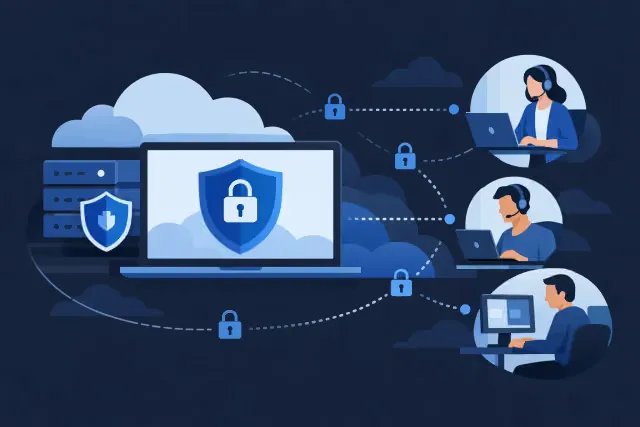
Secure Remote Access Setup for Growing Teams
A new employee working from a home laptop, a project manager opening files from a job site, and an accountant approving payments while traveling may all need access to the same systems. Without clear controls, that convenience can create blind spots around identity, devices, data, and support. A secure remote access setup gives growing businesses a practical way to support flexible work without treating every login as equally trustworthy.
For most small and mid-sized organizations, the goal is not to make remote work complicated. It is to make access deliberate. Employees should be able to reach the tools they need, while the business can confirm who is signing in, whether their device meets expectations, and what happens when a person or device should no longer have access.
What a Secure Remote Access Setup Needs
Remote access is more than a virtual private network. A VPN can still have a place when staff need to reach an on-premises application or file server, but it does not solve every security or operational question. If a user signs in with a weak password from an unmanaged personal computer, the connection itself does not provide enough assurance.
A stronger approach starts with identity. Microsoft Entra ID can centralize user accounts, sign-in policies, multi-factor authentication, and access decisions for Microsoft 365, Azure, and connected business applications. Instead of relying on a shared account or a broad network connection, each person receives access based on their role.
The second component is the device. A company needs to know whether the laptop or mobile device accessing business data has basic safeguards in place. With Microsoft Intune, organizations can enroll and manage supported devices, require encryption and screen locks, deploy updates, and apply configuration policies. For personally owned devices, application-level protections may be more appropriate than full device management. The right choice depends on the role, the information involved, and what employees have agreed to use for work.
The third component is data protection. Employees may work from an office, a client site, or home, but sensitive documents should not become uncontrolled simply because they are being accessed remotely. This can include limiting downloads to unmanaged devices, protecting files shared outside the organization, and setting sensible retention and sharing rules in Microsoft 365.
Finally, the setup needs visibility and a support process. Sign-in logs, device status, security alerts, and offboarding tasks should be reviewed by someone who can investigate issues and respond consistently. Technology without ownership often becomes a collection of settings that no one revisits.
Start With Access, Not Tools
Businesses often begin by asking which remote access product to buy. The more useful question is: who needs access to what, from which devices, and under what conditions?
A sales manager may need Microsoft 365, a CRM platform, and mobile access to email. A finance employee may need access to banking workflows or accounting systems that require tighter approval controls. A contractor may need limited access to a project workspace, but not to internal financial folders. These distinctions should shape the design.
An assessment should document core users, applications, data types, and current access paths. It should also identify where accounts are shared, where former employees may still have access, and which systems still depend on an office network. This work can expose operational issues as well as security gaps. For example, an employee who can only work by remotely controlling an office desktop may be relying on an application that needs modernization or a better cloud access model.
This is also the point to define reasonable exceptions. Not every application supports modern authentication. Not every employee needs a corporate phone. A practical design accounts for legacy systems while creating a path to reduce dependence on them over time.
Build Identity Controls Around Real Risk
Multi-factor authentication should be standard for business accounts, especially email, cloud storage, administrative portals, and remote access tools. It reduces the chance that a stolen password alone can provide access. However, implementation matters. A rushed rollout can lock out employees, disrupt shared workflows, or leave administrative accounts poorly protected.
Use separate administrator accounts for administrative work rather than giving daily user accounts permanent elevated rights. Limit privileged access to the people who need it, and review it regularly. For higher-risk actions, stronger sign-in requirements or time-limited elevation may be appropriate.
Conditional access policies can add context to sign-in decisions. A policy might require multi-factor authentication for all users, block legacy authentication methods, or require a compliant managed device before accessing certain applications. These policies should be tested carefully before broad enforcement. An overly strict policy can stop legitimate work; an overly permissive one can make the policy ineffective.
For small businesses, the best starting point is usually a focused set of policies that protect the most sensitive systems without creating unnecessary friction. As the organization grows, access rules can become more segmented by department, application, location, or risk level.
Manage Devices Without Creating a Support Burden
A secure remote access setup is difficult to maintain when every laptop is configured differently. Intune provides a centralized way to establish a baseline for Windows, macOS, iOS, and Android devices, depending on the organization’s licensing and requirements.
A sensible baseline commonly includes full-disk encryption, supported operating system versions, automatic security updates, endpoint protection, screen-lock requirements, and the ability to remove company data when a device is lost or an employee leaves. Microsoft Defender can provide additional endpoint visibility and threat protection where it fits the organization’s security plan.
The trade-off is employee experience. Fully managing a personal computer may not be appropriate for every team. For bring-your-own-device scenarios, app protection policies can help separate company data in approved mobile apps without giving the business full control of the entire device. That approach may be suitable for email and collaboration access, while higher-risk work remains limited to managed corporate devices.
Clear expectations matter as much as the technical configuration. Employees should know which devices are approved, what support is available, and what they need to do if a device is lost, replaced, or compromised.
Replace Broad Access With Purposeful Access
Traditional remote access often gives users a wide connection into the business network. That model can be necessary for certain on-premises resources, but it should not be the default for every user and every application.
Where possible, provide access directly through secured cloud services. Microsoft 365 allows staff to collaborate through Teams, SharePoint, OneDrive, and Exchange Online without opening broad network access. Azure-hosted applications can be designed with identity-based access controls rather than relying only on network location.
When a VPN or remote desktop service is required, restrict it. Require multi-factor authentication, limit which users can connect, keep systems patched, and avoid exposing remote desktop services directly to the public internet. Separate access for vendors and contractors from employee access, and remove it when the work is complete.
This does not mean every legacy server needs to move immediately. It means the business should understand why remote connectivity exists, who uses it, and how to reduce unnecessary exposure during a migration or modernization plan.
Make Onboarding and Offboarding Part of the Design
Remote access is only as reliable as the process behind it. New hires need accounts, licenses, devices, groups, applications, and security training. Departing employees need access removed promptly, devices recovered or wiped where appropriate, and ownership of files or mailboxes transferred according to business policy.
A repeatable workflow reduces mistakes. At minimum, the process should define who approves access, who provisions it, how elevated permissions are handled, and who verifies offboarding completion. For organizations using Microsoft 365, these tasks can be standardized through groups, Intune enrollment, Entra ID roles, and documented checklists.
Four areas deserve regular review:
Accounts that have not signed in for an extended period
Users with administrator or sensitive application access
Devices that are no longer compliant or supported
External guests, vendors, and temporary project accounts
These reviews do not need to be burdensome. Quarterly is often a practical starting point for a growing business, with more frequent attention to administrative accounts and critical systems.
Test the Setup Before It Becomes Urgent
A remote access plan should be tested in ordinary business conditions, not only after an employee cannot sign in. Confirm that a new user can complete multi-factor authentication, a compliant device can access required applications, and an offboarded user loses access as expected. Test what happens when a laptop is lost or an employee changes phones.
It is also worth testing the business continuity side. If an office is unavailable for a day, can core staff access documents, email, collaboration tools, and essential applications? If the answer is no, the issue may be less about remote work and more about a dependency on local infrastructure that deserves attention.
For organizations with limited internal IT capacity, a readiness review can turn these questions into an actionable plan. Lozes IT can assess Microsoft 365, Entra ID, Intune, Azure, and endpoint controls, then help prioritize changes around business risk and operational needs.
The most useful next step is not a larger stack of security tools. It is a clear picture of who has access, what they can reach, and whether that access still makes sense for the way your business works.
