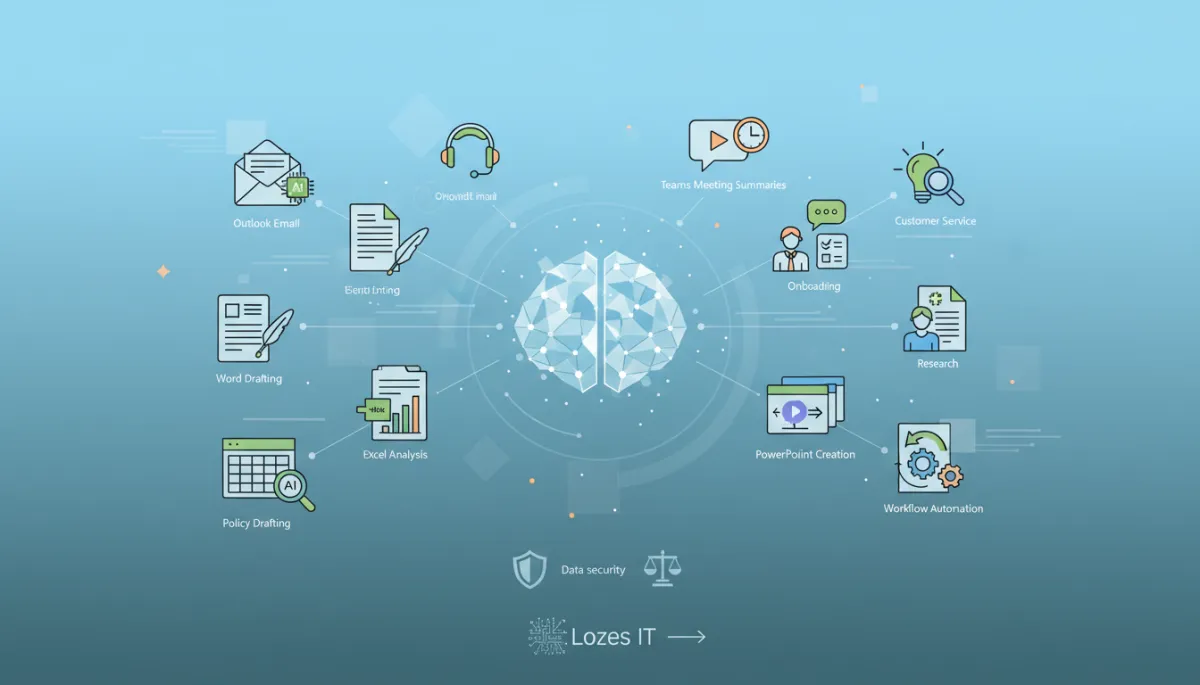
Microsoft Copilot: 10 Time-Saving Use Cases
Microsoft 365, Copilot, Small Business, Productivity, Governance
Microsoft Copilot for Small Business: 10 Practical Use Cases That Actually Save Time
For many Toronto and GTA organizations, Microsoft Copilot is no longer a futuristic idea—it is a practical tool you can use today inside Outlook, Teams, Word, Excel, and PowerPoint. When implemented with clear scope, security guardrails, and adoption metrics, Copilot can remove repetitive work from owners, managers, and frontline staff without introducing new risk or confusion. This guide focuses on realistic, everyday scenarios and how LOZES IT Solutions helps businesses move from interest to responsible, measurable use.

Turn Everyday Microsoft 365 Work Into Time Savings
Practical Copilot scenarios for busy teams in Toronto and the GTA
1. Outlook Email: From Blank Screen to Clear, Contextual Replies
Email is still where a lot of time disappears for executives, account managers, and coordinators. Copilot in Outlook can help reduce the time you spend drafting and triaging messages, especially when you are dealing with long threads or repeating questions—not by sending messages for you, but by giving you a strong first draft to edit and approve.
Summarize long threads: Ask Copilot to summarize a 20-message client thread into a few bullet points, including open questions and next steps, before you reply or escalate internally.
Draft responses with your own tone: Use prompts like “Draft a concise, professional reply confirming we received this and will respond within two business days,” then adjust language to match your organization’s voice and policies.
Turn emails into tasks: In the Copilot side pane, ask, “What actions are expected of me from this week’s emails?” to generate a task list you can move into Planner, To Do, or your ticketing system.
As of 2026, Outlook’s implicit grounding and attachment listing allow Copilot to reference email content and attachments you already have access to, keeping suggestions aligned with the conversation while still respecting your existing permissions (source).
2. Teams Meeting Summaries: Capture Decisions Without Extra Note-Takers
For leadership teams, project groups, and customer calls, the value of Copilot often starts with reliable meeting summaries. Rather than relying on someone’s memory or scattered notes, Copilot in Teams can generate a structured recap you can quickly review and correct before sharing.
Post-meeting recaps: After a Teams meeting, ask Copilot to list key decisions, action items by owner, and open risks. This is particularly useful for recurring operations or project meetings with many participants.
Catch-up for late joiners: During a meeting, someone who joins late can ask Copilot, “What did I miss so far?” to get a brief, private summary without interrupting the discussion.
Follow-up emails: Use Copilot to turn the summary into a draft follow-up email with decisions and next steps, ready to send from Outlook.
💡 Pro Tip: LOZES IT Solutions often recommends piloting Copilot first with leadership and project teams that already use Teams consistently—this makes it easier to measure changes in meeting follow-up quality and turnaround time.
3. Word Drafting: Policies, Proposals, and Internal Communications
Many small and mid-sized organizations struggle to keep up with documentation: proposals, internal memos, HR templates, and board updates. Copilot in Word is most effective when you treat it as a structured first-draft partner, not an automatic writer of finished documents.
Proposal outlines: Provide Copilot with a brief description of the client, services, and pricing approach and ask it to generate an outline or first draft. Your team can then refine details, add local context, and align with your brand language.
Internal updates: Turn bullet-point notes from a leadership meeting into a staff announcement that is clear, respectful, and consistent in tone across departments.
Rewrite and shorten: Ask Copilot to shorten long sections, simplify language for non-technical audiences, or generate alternative versions for different stakeholder groups (for example, executives vs. frontline staff).
4. Excel Analysis: Turning Raw Data Into Understandable Insights
Many organizations rely on Excel for budgeting, forecasting, and operational tracking. Copilot in Excel helps non-analysts explore data using natural language and, as of 2026, can even leverage Python execution through “Edit with Copilot” for more advanced scenarios (source).
Quick summaries: Ask, “Summarize last quarter’s sales by region and highlight any significant changes,” to generate a narrative explanation alongside charts and pivot suggestions.
What-if questions: Use Copilot to test scenarios such as, “If we increase prices by 3% and reduce discounts by 1%, what is the projected impact on gross margin?”
Error spotting: Ask Copilot to look for outliers, missing values, or inconsistent formatting that might indicate data issues before you present numbers to leadership or auditors.

Clear Copilot prompts help non-analysts turn everyday Excel data into usable decisions.
5. PowerPoint Creation: Consistent Decks for Clients, Boards, and Staff
Building slide decks can consume hours, especially when teams start from scratch each time. Copilot in PowerPoint can generate draft decks from Word documents, meeting transcripts, or bullet points, then help you iterate while staying close to your brand standards. Recent enhancements also let Copilot pull from organizational asset libraries to propose brand-consistent layouts and visuals (source).
Draft from a document: Convert a proposal, project charter, or report into a first-pass slide deck, then refine slides that matter most for your audience.
Speaker notes: Ask Copilot to generate talking points or speaker notes based on each slide’s content to help presenters stay on message without reading verbatim.
Versioning: Quickly create executive, operational, and client-facing versions of the same deck by asking Copilot to adjust depth, terminology, and emphasis.
6. Customer Service: Faster, More Consistent Responses Across Channels
Whether you run a small contact centre or have a few staff handling customer inquiries, Copilot can help them respond more consistently by drawing on existing knowledge such as FAQs, policy documents, and previous tickets—within the boundaries of what each agent is allowed to access.
Knowledge-assisted replies: In Outlook or Teams, staff can ask Copilot to draft responses based on your documented processes, warranties, or service level agreements, then verify details before sending.
Internal escalation notes: Copilot can summarize a long customer history into a concise handoff note when a case needs to be escalated to technical or management teams.
Training content: Use Copilot to generate scenario-based examples for new agents, based on real (appropriately anonymized) cases stored in your Microsoft 365 environment.
7. Research: Structured Background Work Without Leaving Microsoft 365
Leaders and managers often spend time gathering background information on markets, regulations, or vendors. Copilot Chat and Copilot in Word can help structure this research, but it is critical to treat outputs as a starting point, not a final authority—especially for regulated or Canada-specific topics.
Landscape summaries: Ask Copilot to outline key trends in your industry, then cross-check important facts against trusted Canadian sources or your own advisors before making decisions.
Question lists: Generate structured question lists to use with vendors, partners, or legal counsel, based on your initial research and internal documentation.
Synthesizing internal content: Instead of reading through multiple internal documents, ask Copilot to compare policies, summarize differences, or highlight missing information that needs attention.
⚠️ Responsible Use Reminder: LOZES IT Solutions encourages clients to keep a human in the loop for any Copilot-based research that could affect compliance, contracts, or safety. Treat Copilot as a research assistant, not a decision-maker.
8. Onboarding: Helping New Hires Navigate Tools and Processes Faster
New staff often spend their first weeks asking where to find documents, who to contact, and how to follow internal processes. With the right permissions and data hygiene, Copilot can help reduce this friction while reinforcing your documented standards.
“How do we…” questions: New hires can ask Copilot questions like, “How do I submit an expense in our company?” or “Where is the latest health and safety policy?” and receive answers grounded in your Microsoft 365 content they are allowed to see.
Role-specific guides: Use Copilot to assemble personalized onboarding checklists by combining HR documents, IT guides, and department-specific SOPs into a single Word or OneNote package.
Training recaps: After live training sessions in Teams, Copilot can summarize recordings into key points and FAQs, useful for people who join later or need a refresher.
9. Policy Drafting: Safer, Clearer Documents With Governance in Mind
Policies around acceptable use, remote work, data handling, and AI are evolving quickly. Copilot can help you draft and update these documents, but it should not replace legal review or compliance expertise—especially for organizations subject to sector-specific or Canadian regulatory requirements.
Baseline drafts: Provide Copilot with your existing policy and ask it to update language for clarity, add examples, or align with a new standard you are adopting. Then have legal or compliance stakeholders review and approve changes.
AI use guidelines: Draft responsible AI usage guidelines for staff, including what content should not be shared with AI tools, how to handle sensitive data, and when human review is mandatory.
Change summaries: When policies are updated, ask Copilot to summarize what changed in plain language so employees understand impact without reading the full redline.
10. Workflow Automation: From Repetitive Tasks to Simple Agents
Beyond individual documents and messages, Copilot can help streamline cross-app workflows. With Microsoft 365 Copilot and Copilot Studio, you can build simple agents that guide staff through consistent steps—while still operating under your existing security and compliance settings (source).
Intake workflows: Use Copilot agents to collect structured information from staff or customers (for example, IT requests, onboarding details, or incident reports) and route them into Teams, Planner, or your ticketing system.
Recurring check-ins: Automate weekly or monthly check-ins where Copilot prompts managers for updates, compiles responses, and drafts a consolidated summary for leadership.
Agent store and lifecycle: With the Agent Store and lifecycle policies, admins can centrally manage which internal agents are available, ensuring they align with governance and do not become “shadow IT” (source).
Licensing and Readiness Considerations for Small and Mid-Sized Organizations
As of mid‑2026, Microsoft distinguishes between Copilot Chat (included with many Microsoft 365 plans) and the paid Microsoft 365 Copilot add-on. For most business and agency scenarios described above, you will want the Microsoft 365 Copilot license to unlock in-app experiences in Outlook, Teams, Word, Excel, and PowerPoint (source).
You must already have an eligible base subscription (for example, Microsoft 365 Business Premium or Enterprise E3/E5) before adding Microsoft 365 Copilot licenses (source).
Pricing for Microsoft 365 Copilot Business typically ranges around $18–21 USD per user per month on annual commitment, with higher rates for monthly billing; Canadian pricing will vary by currency and partner program, so it is important to confirm current rates at the time of planning.
Users without the add-on will see limited or no in-app Copilot functionality even if they previously had preview access (source).
LOZES IT Solutions typically recommends starting with a focused group of users—often 10–50 people across leadership, operations, finance, and customer-facing roles—before expanding licensing to the wider organization. This allows you to validate security, adoption, and value in your specific context.
Data Security and Responsible AI: Using Copilot Without Increasing Risk
A common concern for owners, IT managers, and compliance leaders is whether Copilot will expose sensitive data or use company information to train public AI models. Microsoft 365 Copilot operates within the Microsoft 365 service boundary and follows the same data protection, encryption, and access control model as the rest of your tenant (source).
Prompts, responses, and content retrieved via Microsoft Graph are not used to train foundation models; they remain within your tenant’s security and compliance boundary (source).
Copilot respects existing permissions. If a user cannot open a file in SharePoint or OneDrive, Copilot cannot surface or summarize it for them. This makes your current access model and data hygiene critically important.
Microsoft Purview tools—such as data classification, sensitivity labels, DLP, and eDiscovery—apply to Copilot interactions and outputs, helping you maintain regulatory compliance (source).
From a responsible AI perspective, LOZES IT Solutions encourages clients to:
Define clear guidelines for what content staff can and cannot share with Copilot (for example, personal health information, highly confidential deal terms, or unapproved financials).
Require human review for any Copilot-generated content that goes to customers, regulators, or the public, especially where accuracy and legal language matter.
Use Microsoft’s deployment blueprint—remediating oversharing, setting guardrails, and aligning with regulatory requirements—as a foundation for rollout (source).
Measuring Adoption: Practical Metrics That Matter More Than Hype
Instead of relying on generic “productivity increase” claims, it is more helpful to track specific, observable metrics that align with your business goals. For many organizations, useful Copilot adoption metrics include:
Usage by role and app: How often do your pilot users invoke Copilot in Outlook, Teams, Word, Excel, and PowerPoint? Are there departments that barely use it, and why?
Cycle times: How long does it take to produce a standard report, proposal, or board update before and after Copilot? Even modest improvements can free up time for higher-value work.
Quality indicators: Are meeting summaries more consistent? Are fewer follow-up emails needed to clarify decisions? Do managers report better visibility into ongoing work?
Support tickets and questions: Are IT and operations teams receiving fewer “where do I find…” or “how do I…” questions as staff learn to ask Copilot first?
📌 Key Takeaway: The most useful Copilot metrics are specific to your workflows. LOZES IT Solutions helps clients define 3–5 simple indicators that leadership can review monthly without needing a data science project.
Implementation Checklist: A Practical Path From Interest to Pilot
To move from curiosity to a responsible Copilot rollout, it helps to follow a structured, time-bound approach. Below is a concise checklist LOZES IT Solutions often uses with organizations between 20 and 500 users in Toronto and the GTA:
Clarify objectives: Identify 3–5 priority scenarios (for example, Outlook email drafting for account managers, Teams meeting summaries for leadership, Excel analysis for finance) and define what “better” looks like for each.
Confirm licensing and eligibility: Review your current Microsoft 365 subscriptions, determine which users should receive Copilot licenses first, and confirm pricing and billing terms with your Microsoft partner or reseller.
Assess data security posture: Use tools such as Microsoft Purview, SharePoint permissions reviews, and basic data classification to reduce oversharing before enabling Copilot broadly. Address obvious “everyone can see everything” risks first.
Define responsible use guidelines: Draft a short, plain-language Copilot usage guideline document covering acceptable data, human review expectations, and escalation paths for questionable outputs or incidents.
Select a pilot group: Choose a cross-functional set of users (for example, executives, finance, operations, customer service) who are open to change and willing to provide structured feedback over 60–90 days.
Deliver targeted training: Provide short, scenario-based training sessions that show how to use Copilot for real tasks in Outlook, Teams, Word, Excel, and PowerPoint—avoiding generic feature tours that do not map to daily work.
Monitor usage and feedback: Track adoption metrics, gather qualitative feedback from pilot users, and adjust prompts, policies, or data access where needed. Address misunderstandings early (for example, expectations that Copilot will “do my job for me”).
Decide on expansion: Based on pilot results, determine whether to expand Copilot licensing, refine use cases, or pause to address security, change management, or process gaps.
Next Step: Book a Practical Copilot Readiness Conversation With LOZES IT Solutions
Copilot can absolutely help small and mid-sized organizations save time—but only when it is aligned with your real workflows, your security posture, and your regulatory context. LOZES IT Solutions focuses on clear recommendations, accurate Microsoft terminology, and a practical path from your current state to an improved, well-governed use of Microsoft 365, Intune, Azure, and Copilot.
If you are responsible for technology, operations, or compliance in a Toronto or GTA organization with roughly 20–500 users, and you want to explore Copilot without hype, consider one of these next steps:
Book a Copilot readiness consultation: Review your current Microsoft 365 environment, licensing, and data security posture with a LOZES specialist, and leave with a concrete, scoped pilot plan.
Start a structured readiness assessment: Work through a guided assessment of your tenant configuration, Purview setup, and governance maturity to identify the minimum changes needed before enabling Copilot.
Register for an educational session: Invite your leadership, IT, and security stakeholders to a focused session on Microsoft 365 Copilot in the Canadian context, including licensing, security, and realistic use cases.
You do not need a sweeping “AI transformation” project to get value from Copilot. With the right guardrails and a measured rollout, you can start by improving a handful of everyday tasks—Outlook replies, Teams summaries, Word drafts, Excel analysis, and PowerPoint decks—and expand from there based on real results. If you would like to discuss what that could look like for your organization, reply to connect with a LOZES IT Solutions specialist or book a consultation at a time that works for you.
Related Lozes insights
Book a Microsoft Copilot readiness consultation with Lozes IT Solutions.
